Introduction
Ever wondered why some Instagram feeds look so polished and cohesive, while others feel random or cluttered? The secret often lies in brand consistency — and Canva makes achieving that easier than ever.
Whether you’re a small business owner, content creator, or influencer, staying consistent on Instagram is key to building trust and recognition. But with Canva’s tools and templates, you can design like a pro without needing a graphic design degree.
In this step-by-step guide, you’ll learn how to stay consistent on Instagram using Canva, from designing posts that match your brand to scheduling content effortlessly.
Why Consistency Matters on Instagram
Before diving into the “how,” let’s talk about why consistency matters.
- Builds trust and recognition: When your audience sees your style repeatedly, they start associating your visuals with your brand.
- Improves engagement: Consistent posting signals Instagram’s algorithm that your account is active and valuable.
- Enhances storytelling: A cohesive feed helps communicate your brand message effectively.
- Saves time and effort: With pre-designed templates and a brand kit, you can create posts faster and maintain quality.
If you want your Instagram to look polished, professional, and recognizable at first glance — consistency is non-negotiable.
How to Stay Consistent on Instagram Using Canva
Let’s break down the process into actionable steps so you can design and post with purpose.
1. Define Your Visual Brand Identity

Before creating content, you need to understand what your brand stands for. Your visual identity should reflect your tone, values, and target audience.
Here’s what to define first:
- Brand Colors: Choose 2–4 colors that reflect your brand personality. Canva allows you to save these in your Brand Kit.
- Fonts: Select one or two consistent fonts (e.g., one for headings, one for body text).
- Logo Placement: Keep your logo placement consistent across all posts — bottom right or top left works best.
- Imagery Style: Use similar filters, lighting, and photography styles.
Pro Tip: Use Canva’s Brand Kit (available in Canva Pro) to store your logo, fonts, and brand colors for instant use in every design.
2. Create Custom Canva Templates for Your Instagram Posts
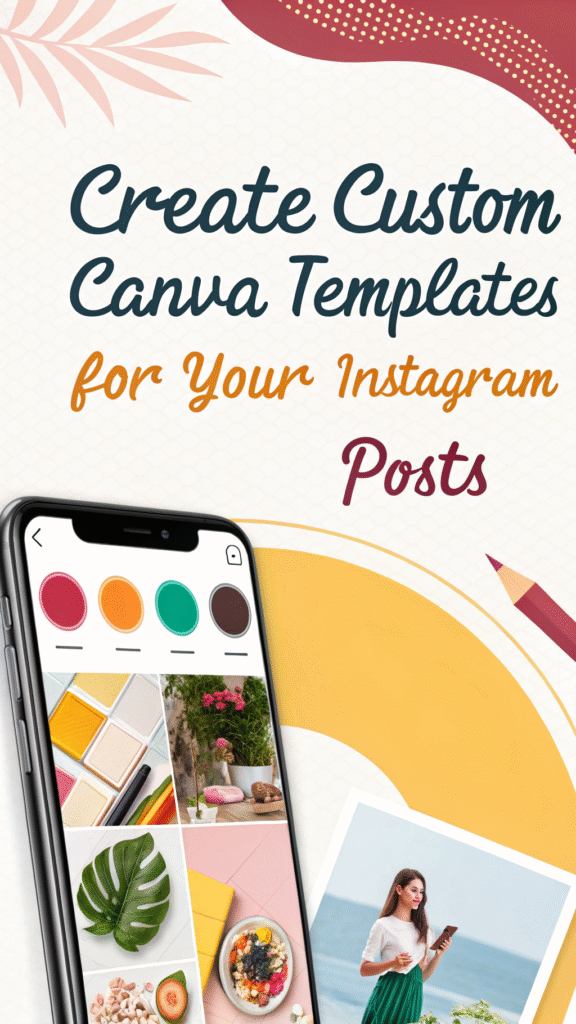
Instead of designing from scratch every time, build a set of reusable Instagram templates in Canva.
Try creating templates for:
- Quote posts
- Announcements or promotions
- Carousel posts
- Reels covers
- Testimonials
- Educational graphics
This approach ensures every post matches your brand aesthetic while saving hours of design time.
How to do it:
- Open Canva → Create a new design (1080×1080 for posts, 1080×1920 for stories).
- Add your brand fonts, colors, and logo.
- Save as a “template” so you can reuse and update it later.
By using templates, your feed will stay visually consistent even as your content evolves.
3. Use Canva’s Content Planner for Scheduling
Did you know Canva has a built-in Content Planner?
It lets you design and schedule posts directly to Instagram — no need for third-party tools.
Steps:
- Go to “Content Planner” in Canva.
- Select your design.
- Click “Schedule.”
- Connect your Instagram account and pick your posting time.
This tool helps you stay organized and consistent, especially when managing multiple posts per week.
Pro Tip: Plan one week of content at a time. Use recurring templates and plan your captions and hashtags in advance.
4. Maintain a Consistent Feed Aesthetic
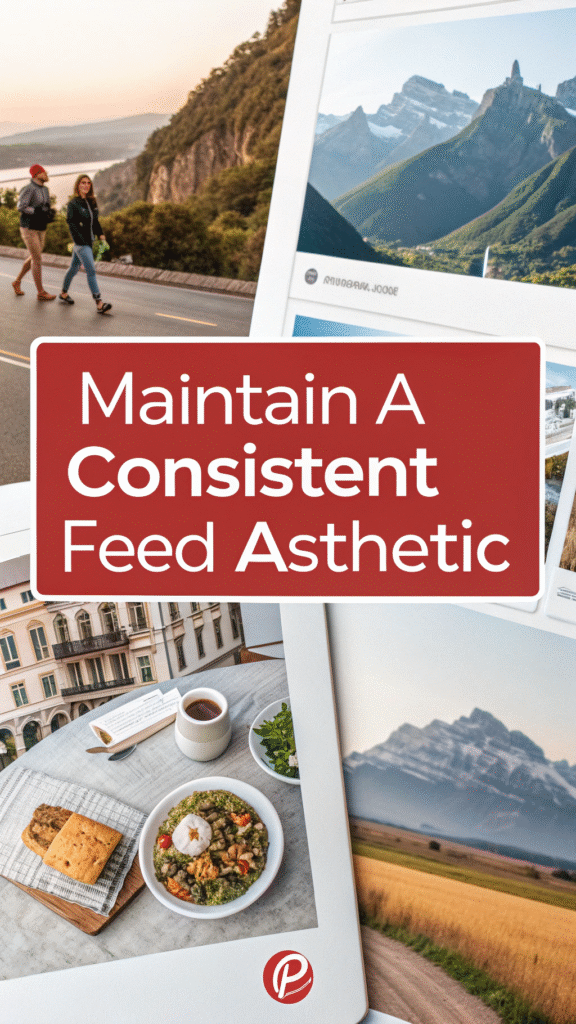
Your Instagram grid is your visual portfolio — it’s the first thing people see.
To keep your feed looking cohesive:
- Stick to your brand colors and fonts.
- Alternate between types of content (e.g., quotes, product photos, and carousels).
- Maintain balanced spacing and composition in every post.
- Preview your feed layout using Canva’s Grid View or tools like Planoly or Preview.
Pro Tip: Canva Pro’s “Magic Resize” feature helps you quickly adjust posts for stories, reels, or other platforms while maintaining your brand’s design.
5. Repurpose Content Smartly with Canva
Consistency doesn’t mean creating new designs every day.
Instead, use Canva to repurpose your top-performing content:
- Turn a blog post into a carousel.
- Convert a testimonial into a story post.
- Reuse quotes with different backgrounds.
- Adapt YouTube thumbnails into Instagram reels covers.
This strategy keeps your content flow steady while saving you time.
6. Collaborate with Your Team Efficiently
If you work with a team, Canva’s collaboration tools make it easy to stay on the same page.
- Share design links for editing or viewing.
- Leave comments for feedback.
- Assign roles (editor, viewer, etc.) to maintain quality control.
This ensures that everyone uses the same templates and stays aligned with your brand’s visual tone.
Tips for Staying Consistent Long-Term
Here are a few bonus strategies to keep your Instagram visually cohesive all year long:
- Set a posting schedule and stick to it (e.g., 3 times a week).
- Batch-create your designs weekly or monthly in Canva.
- Use Canva folders to organize designs by campaign or month.
- Track analytics on Instagram to see what visuals perform best.
- Regularly refresh templates to avoid creative fatigue.
Conclusion
Staying consistent on Instagram doesn’t have to be overwhelming — especially when you have Canva by your side. From building a brand kit and designing templates to scheduling posts and maintaining your feed’s visual flow, Canva makes it effortless to look professional and polished every time.
If you’re ready to transform your Instagram presence, start organizing your designs and creating your brand kit in Canva today. The more consistent your visuals, the stronger your brand becomes!
FAQs
1. How often should I post on Instagram for consistency?
Aim for 3–5 times per week. Quality and consistency matter more than daily posting.
2. Can I schedule Instagram posts directly from Canva?
Yes! Canva Pro’s Content Planner allows you to design and schedule posts directly to your Instagram account.
3. What’s the best size for Instagram posts in Canva?
Use 1080×1080 pixels for feed posts and 1080×1920 pixels for stories and reels.
4. Do I need Canva Pro to stay consistent on Instagram?
While you can achieve consistency with the free version, Canva Pro offers advanced tools like the Brand Kit, Magic Resize, and Content Planner that make the process much easier.
5. How can I keep my Instagram feed cohesive?
Stick to your brand colors, fonts, and style. Use Canva templates to maintain visual harmony across all your posts.