Images
Social Media Size & Image Resizer
Resize an image to social presets or exact dimensions, adjust the crop and export a ready-to-use file.
Open tool →
Practical, free tools for the small design jobs that interrupt your day. Resize an image, reduce a large file, find a color palette or prepare a carousel before you return to your Canva project.
Choose your next design task
Resize an image to social presets or exact dimensions, adjust the crop and export a ready-to-use file.
Open tool →Reduce image file size with adjustable JPEG or WebP quality and an optional width limit.
Open tool →Convert image formats, preserve transparency where supported and choose a background for JPEG.
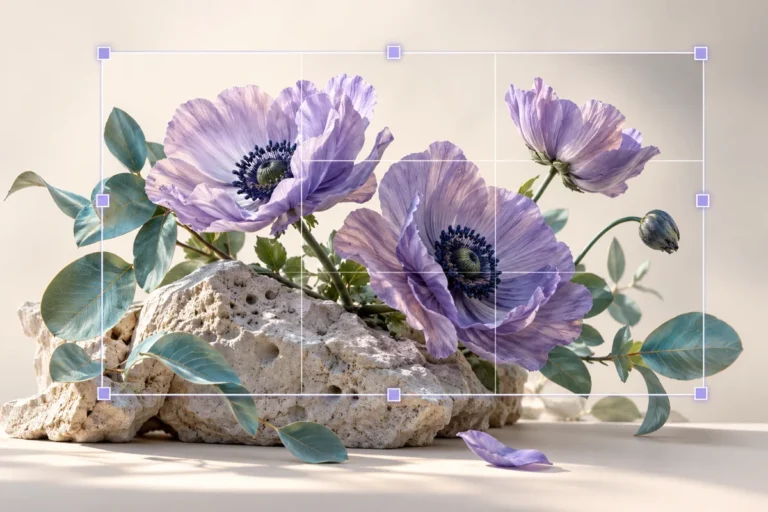
Open tool →Crop photographs to square, portrait, landscape or custom aspect ratios with focal-point controls.
Open tool →Find five dominant colors in a photograph and copy their HEX values for your next design.
Open tool →Measure text and background contrast and check WCAG AA and AAA color thresholds.
Open tool →Create a two-color gradient, copy its CSS or download a custom-size PNG background.
Open tool →Count words, characters, spaces, lines and estimated reading time while drafting design copy.
Open tool →Flip a photo horizontally or vertically and rotate it in clean 90-degree steps.
Open tool →Add a simple text watermark with adjustable position, color, size and opacity.
Open tool →Split a wide image into equal-width numbered slides and download each slide in order.
Open tool →A template gives you a starting point, but the files you put into it still need preparation. A photograph may have the wrong shape, an exported banner may be too large, or a color pairing may make the headline hard to read. These utilities help you make those adjustments with a focused workflow and a downloadable result.
Use them alongside our Canva template collection. They are independent tools, not official Canva features, and do not connect to or edit your Canva account. Export an image from your design editor when you need to process a finished design.
| Your daily problem | Start here | What to check |
|---|---|---|
| The graphic is the wrong size | Image resizer | Ratio, crop and important text near edges |
| The file is too large | Image compressor | Actual output bytes and small detail |
| The upload requires another format | Format converter | Transparency and destination support |
| Your colors do not work together | Palette extractor | Then test text contrast |
| The text is difficult to read | Contrast checker | Normal versus large text thresholds |
| A panorama needs separate slides | Carousel splitter | Source ratio and download order |
Crop distractions, correct orientation and select the output ratio first. Starting with an image close to the shape of your template reduces surprises later. Read the social media size guide when comparing square, portrait and landscape layouts.
Use the palette extractor for inspiration, the contrast checker for solid text and background pairs, and the text counter to tighten copy. A coordinated palette is only useful if the message remains readable on a small screen.
Choose a suitable format, inspect the result at its final size, and compress a copy if needed. The Canva export guide explains common file-format decisions. Always keep a high-quality original for future edits.
Continue with Instagram templates, Facebook templates, Pinterest templates or LinkedIn templates. Prepare the assets here, then customize the template in your preferred editor.
No. This independent collection provides companion utilities for exported images, text and colors. It does not require Canva login or claim Canva affiliation.
The tools process your working files in your browser. This plugin does not send those files to a server. Other scripts used by the website are governed by their own privacy practices.
Yes, with a modern browser. Large images use more memory; choose smaller files if your device struggles. Downloads may open in your browser or Files app depending on your device.
No. Image exports are flattened. Keep the original Canva project so you can change separate text, photos and layers later.

Independent tools for your design workflow. Not affiliated with or endorsed by Canva.