Images
Social Media Size & Image Resizer
Resize an image to social presets or exact dimensions, adjust the crop and export a ready-to-use file.
Open tool →
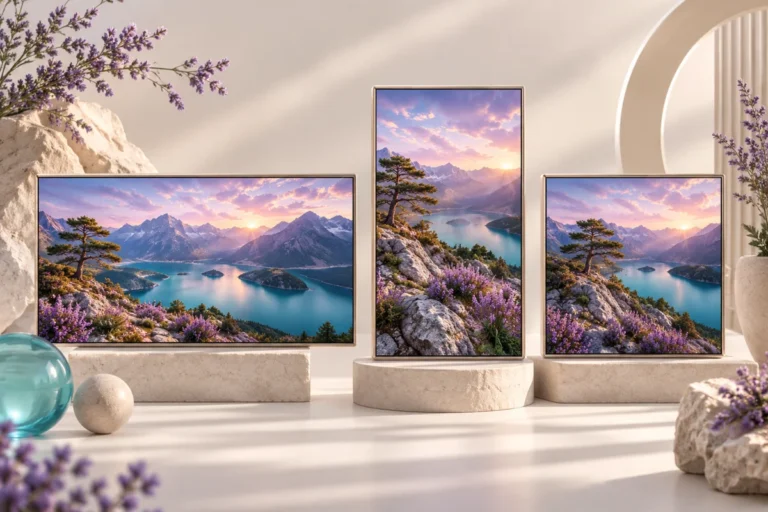
Crop photographs to square, portrait, landscape or custom aspect ratios with focal-point controls.
No account needed · Process locally · Download your resultFree browser tool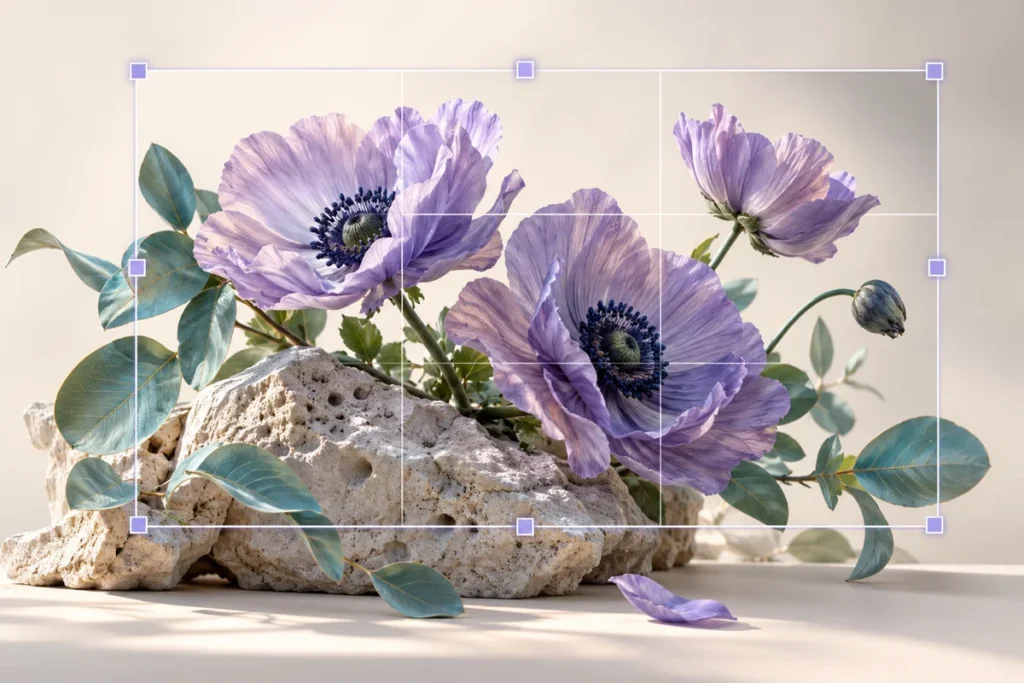
Remove distracting edges and give your subject a deliberate position. Cropping is useful before placing a photograph inside a template because it helps you control which part of the scene remains visible.
Turn a wide team photo into a portrait card by placing the relevant person within the selected frame. If important people cannot fit, use the resizer in contain mode instead.
This is rectangular cropping. It does not remove a background or trace a person. Crop coordinates are constrained so blank edges cannot appear in crop mode.
Keep an untouched original and inspect the result at the size your audience will see. If your next step is a new layout, explore free Canva templates. For additional context, read the related design guide or collection.
Yes. Use the separate resizer with contain mode. A crop deliberately removes part of the source when the ratios differ.
The tool processes supported inputs in your browser. This plugin does not upload your working images or text. Other scripts installed by a site owner follow their own privacy policies.
Browse all free design tools or choose a related utility below. For ready-made layouts, explore Instagram, Pinterest and Facebook templates.
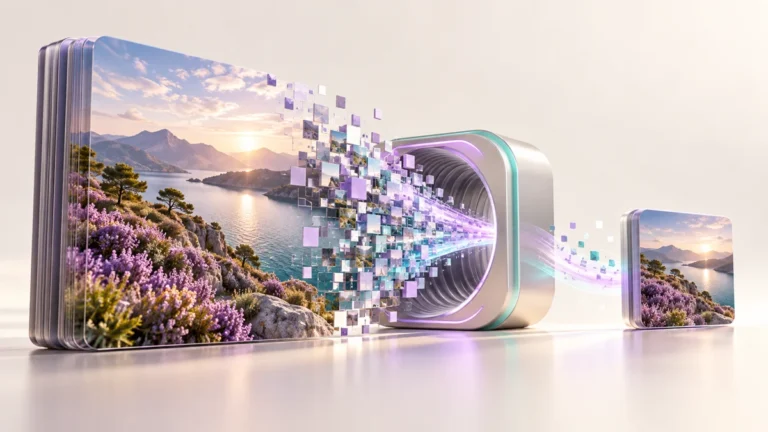
Resize an image to social presets or exact dimensions, adjust the crop and export a ready-to-use file.
Open tool →Reduce image file size with adjustable JPEG or WebP quality and an optional width limit.
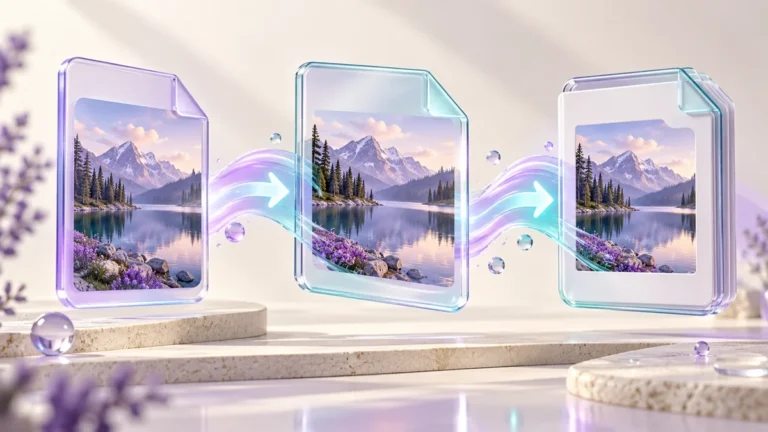
Open tool →Convert image formats, preserve transparency where supported and choose a background for JPEG.
Open tool →
Independent tools for your design workflow. Not affiliated with or endorsed by Canva.