
How to Export Canva Designs: PNG vs JPG vs PDF vs SVG Explained
Choosing the right Canva download format is part of the design process. A beautiful graphic can still perform poorly if it is blurry, unnecessarily large, difficult to print, or missing transparency.
The four formats people commonly compare are JPG, PNG, PDF, and SVG. Each has a different purpose. This guide explains the practical choice for websites, social media, printable documents, logos, and other Canva projects.
Helpful Tool: Resize Before You Export
Export quality is easier when the design starts at the correct size. Use this tool before exporting from Canva to reduce unnecessary quality loss.
- Select the proper dimensions before final export.
- Reduce blurry uploads caused by incorrect sizing.
- Download the final asset in the best format for your use case.
PNG vs JPG vs PDF vs SVG: Quick Comparison
| Format | Best for | Main strength | Watch out for |
|---|---|---|---|
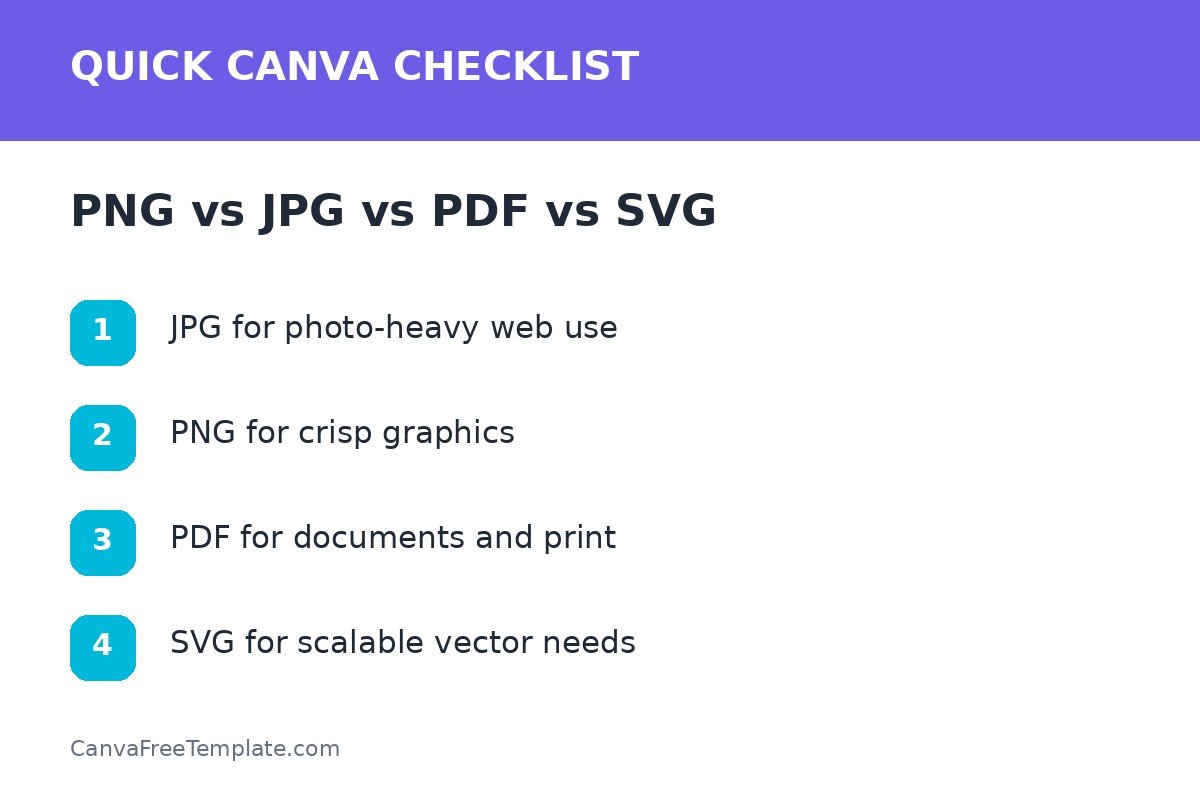
| JPG | Photo-heavy web and social graphics | Smaller file size | No transparency |
| PNG | Text, graphics, transparency | Crisp raster output | Larger files |
| Documents and print | Page-based output | Not a normal social image | |
| SVG | Eligible vector artwork | Scales cleanly | Not ideal for photo-heavy designs |
When to Export Canva Designs as JPG
JPG works well for photo-heavy designs where a smaller file is useful. It is a practical option for many website images and social graphics, especially when transparency is not needed.
Use JPG when
- The design is dominated by photography.
- File size matters.
- You do not need a transparent background.
- The destination accepts standard web images.
When to Export Canva Designs as PNG
PNG is a strong choice for graphics with text, flat colors, interface-style elements, or transparency. It can preserve crisp edges better than a heavily compressed JPG, but the file may be larger.
For platform-specific graphics, combine this choice with the dimensions in the Canva social media size guide.
Use PNG when
- You want crisp text and graphic elements.
- You need transparency and the relevant Canva feature is available.
- The file size is still reasonable for the destination.
When to Export as PDF
PDF is useful for multi-page documents, lead magnets, printable guides, and print workflows. Canva also supports options such as flattened PDF output, which can help preserve appearance for certain use cases.
PDF examples
- Ebooks and checklists
- Printable worksheets
- Presentations shared as documents
- Menus, brochures, and flyers
When to Export as SVG
SVG is a vector format. It is useful when eligible vector artwork must remain sharp at different sizes. It is not a universal replacement for PNG or JPG because photo-heavy designs do not gain the same benefit.
If you are building brand marks, start with the site’s Canva logo templates and keep both web-ready raster exports and a scalable master format when appropriate.
A Simple Canva Export Workflow
- Confirm the destination and required dimensions.
- Choose the correct canvas size before export.
- Preview small text and image crops.
- Select the file type based on content.
- Download one test file.
- Open it outside Canva and inspect quality.
- Only then export the final batch.
Website performance tip
Do not upload oversized images just because they look sharper on your computer. Match dimensions to the display context and compress responsibly. A smaller, appropriately sized image can load faster without sacrificing visible quality.
Keep a master copy
Keep the editable Canva design as your source. Exported files are delivery versions, not replacements for the original editable project.
Canva Export Checklist
- Correct dimensions
- Correct format
- Readable text
- No accidental crop
- Transparency only when needed
- Reasonable file size
- Final file opened and checked
Once you define a standard export rule for each content type, your workflow becomes much faster. Reuse the same choices across your Canva templates unless the destination requires something different.
FAQs About Exporting Canva Designs
Should I export Canva designs as PNG or JPG for social media?
PNG is useful for crisp text-heavy graphics, while JPG can produce smaller files for photo-heavy designs. The best choice depends on the content and platform.
When should I use PDF from Canva?
PDF is useful for documents, guides, presentations meant for download, and print workflows. Canva also offers PDF options designed for different output needs.
Why would I use SVG from Canva?
SVG is useful for vector artwork that needs to scale without losing sharpness, such as certain logos or icons, when the feature and content are eligible for SVG export.
Does exporting at a larger size improve quality?
It can help in some contexts, but it also increases file size. Use the dimensions appropriate for the destination rather than exporting everything at maximum size.
2 Responses