Canva Content Planner Not Posting? Fix Failed Scheduled Social Media Posts
A scheduled post can fail even when the design is ready. The cause is often simple. The social account may need a new login. The post may use the wrong size. The date or page may also be wrong. Use the checks below before you try again.
1. Check the linked social account
Open Canva and go to the post plan or Schedule area. Check the account that is linked. A social site can end an old login. It can also ask for access again.
If Canva shows a warning, connect the account again. Then make sure it is the right brand account. This step matters if you run more than one page.
Do not assume the account is still linked just because it worked last week. A fresh login can fix a failed post in a few minutes.
2. Check the channel and post type
Canva can change which social sites and post types it can send. The social sites can also change their own rules. Open the current Share or Schedule menu in Canva. Use the choices that you see there.
Do not build a full plan from an old guide. Test one post first. Canva also notes that one design is set for one social channel at a time in its planner flow. If you need the same design on four sites, make four post entries.
Use the Canva Social Media Size & Image Resizer
Set the right image size before you add it to the post plan. This helps when one design needs a new size for each social site.
3. Check the image or video
A post plan cannot fix a bad file. Check the size and shape first. Also check the page you want to post. A long design may have more pages than the social site can use.
Use our Canva social media size guide before you make the post. You can also start with the right layout from our Instagram templates, Facebook templates, LinkedIn templates, or Pinterest templates.
For video, play the file once before you set the post. For an image, check that text is easy to read on a phone.
4. Check the date, time, and caption
Read the post one last time before you click Schedule. Small errors are easy to miss in a full calendar.
- Right social account
- Right page or file
- Right date
- Right time and time zone
- Right caption
- Right first image or video frame
If the post is for a client, also check the brand name and link. A ten second check can stop a post from going to the wrong page.
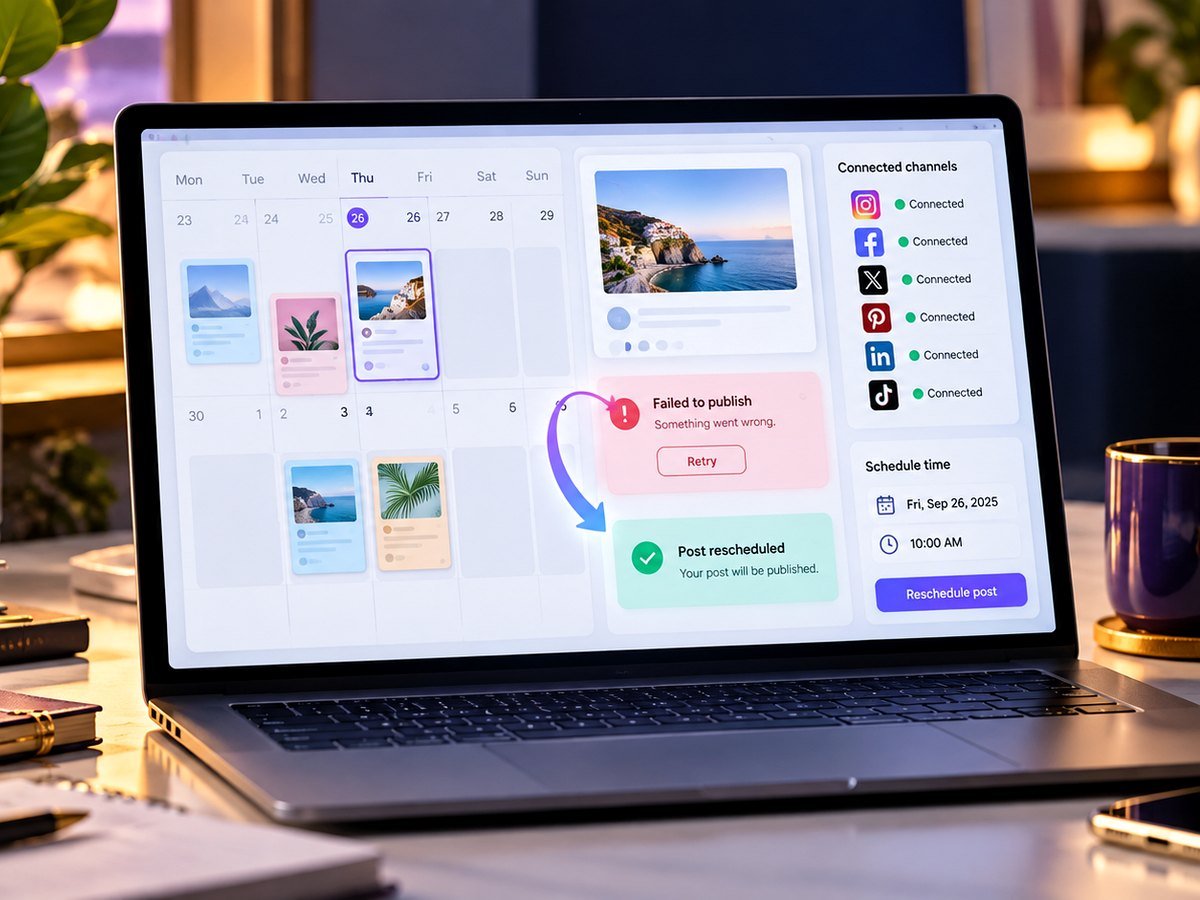
5. Fix a post that failed to publish
Read the error first. Do not press Retry many times. If the account lost access, link it again. If the file is the issue, make a small test post.
Try one image and a short caption. Set it a few minutes ahead. If that works, the old post may have a file or post type issue. If the simple post also fails, check the account link again.
If you need to post by hand and the design will not download, use our Canva download fix. If Canva itself is slow, use our Canva speed fixes.
Canva’s Content Planner help page has the latest steps and channel notes.
How to schedule a post with Canva’s Content Planner
Video source: YouTube · Canva
Frequently asked questions
Why did my Canva scheduled post fail?
The connected social account may need to be reconnected, the content may not meet the platform limits, or the platform connection may have changed.
Can Canva schedule to every social platform?
No. Supported platforms and post types can change. Check the current options in Canva before you build a full calendar.
Why can’t I schedule my Instagram post?
Canva documents special requirements for Instagram scheduling, including account and desktop workflow requirements in some cases.
Should I still check a post after it is scheduled?
Yes. Review the final time, channel, caption, media, and account. Then check after publish when the post is important.