
Canva Video Blurry After Export? Fix Soft, Pixelated, or Low-Quality Downloads
A blurry Canva video usually comes from one of four places: the source clip, the canvas size, the export setting, or the platform that receives the file. Raising one quality setting at the end does not fix a low-quality source. The best result comes from a clean workflow from the start.
1. Check the source video quality
Start with the original video file when you can. A clip saved from a chat app or downloaded from social media may already be compressed. Canva cannot create missing detail from a soft source.
Canva’s upload requirements note that some high-resolution video can be downscaled during upload. That means a 4K export is not a promise that every source clip will stay 4K through the full workflow.
2. Match the canvas to the final platform
A vertical Reel, a square post, and a YouTube video need different layouts. If you design in the wrong shape, you may need to enlarge and crop the video later. That can make soft footage look worse.
Use our Canva social media size guide before you start. You can also use the free resizer below to prepare still images that go inside your video.
Use the Canva Social Media Size & Image Resizer
Resize supporting images to the right platform size before you place them in a Canva video. This reduces extra scaling and crop work.
3. Choose a clean export setting
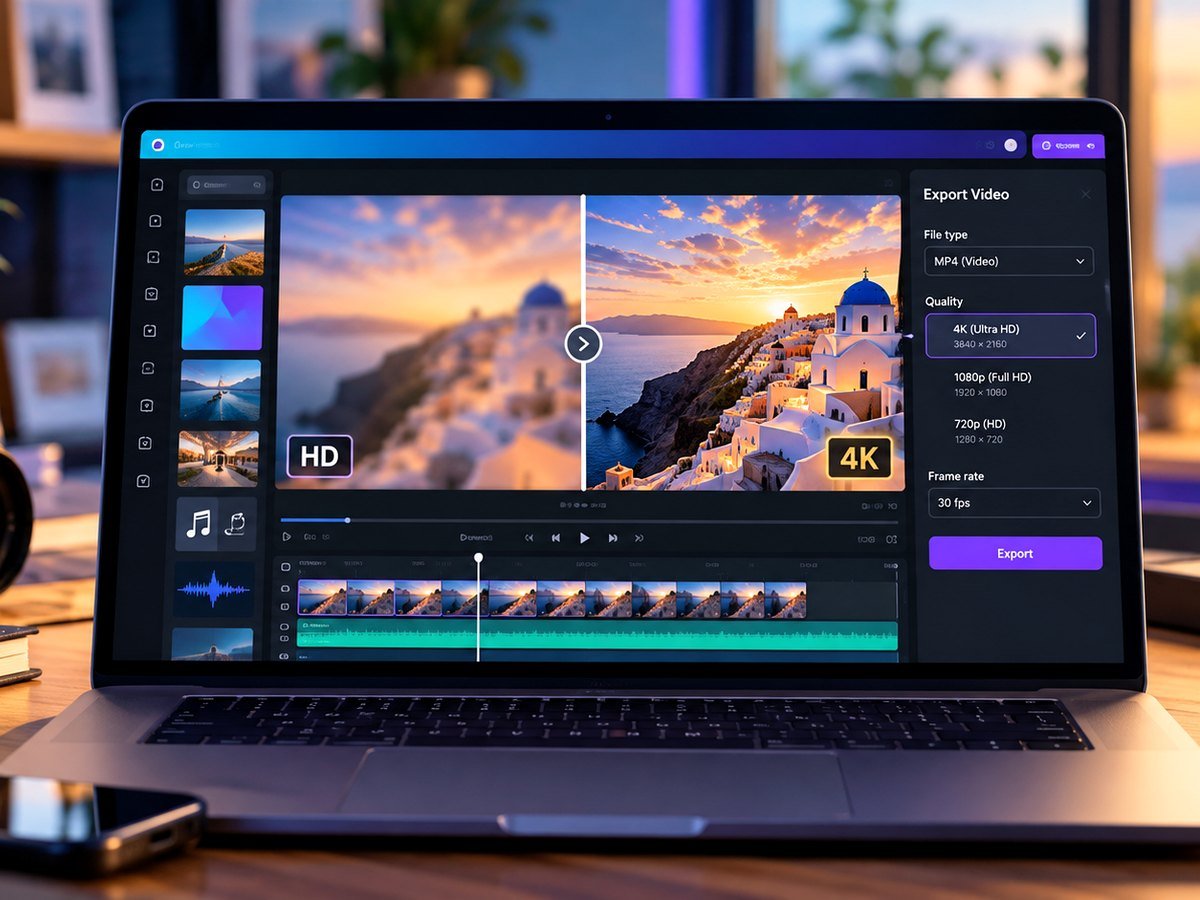
Use MP4 for normal social and web video. Pick the best quality option that fits your plan and the platform. Do not export a tiny video and then enlarge it in another app.
| Problem | Better choice |
|---|---|
| Soft text | Use a larger canvas and strong font weight. |
| Pixelated photo | Replace it with the original image. |
| Blurry after social upload | Use the platform’s correct aspect ratio and size. |
| Large file fails | Test a shorter section or simpler export. |
4. Compare the file before and after upload
Play the downloaded MP4 on your computer first. If it is sharp there but soft after you upload it, the social platform is likely adding compression. If the local MP4 is already soft, fix the source, canvas, or export before you upload again.
For still designs, our Canva blurry download guide covers PNG and JPG quality in more detail.
5. Use this quality checklist
- Use original media.
- Choose the final platform size first.
- Avoid stretching small images.
- Preview text at 100% size.
- Export once in MP4.
- Check the local file before uploading.
If Canva will not finish the video export, use our download and export fix. If the editor is slow during video work, see the Canva performance guide.
How To Download Canva Videos In High Quality
Video source: YouTube · YouTube tutorial
Frequently asked questions
Why is my Canva video blurry after download?
The source video may be low quality, the canvas may be too small, or the export and upload platform may add compression.
Does exporting at 4K always make a Canva video sharper?
No. A higher export setting cannot restore detail that was not in the source media.
Why does the video look good on my computer but blurry on social media?
Many social platforms compress uploaded video. Use the correct canvas size and a clean export to reduce extra quality loss.
Should I resize a video before I design?
Yes when the source or final platform uses a very different aspect ratio. Correct sizing helps avoid heavy crop and scaling.
2 Responses