
Canva Slow, Lagging, or Not Loading? 12 Simple Fixes for the Editor
A slow Canva editor can make every small task feel broken. Text takes time to move, uploads hang, and pages may stay blank. The cause can be the network, browser, device memory, extensions, or one very heavy design. Test one layer at a time instead of changing everything at once.
1. Do a two-minute connection and browser test
Save your work first. Then open a simple website in another tab. If everything is slow, check the connection. If only Canva is slow, close unused tabs and reload the editor.
Update your browser when an update is waiting. A modern editor uses many browser features, so an old browser can create odd errors.
2. Free device memory before a heavy design
Video, animation, and large photo files use more memory than a simple social post. Close apps you do not need. On a laptop with limited memory, this can make a clear difference.
- Close unused browser tabs.
- Pause large downloads.
- Close heavy desktop apps.
- Restart the browser if it has been open for days.
- Keep enough free disk space for normal browser work.
3. Reduce the load inside the design
If one Canva project is slow but new blank designs are fast, the project itself may be heavy. Make a copy first. Then test fewer pages or remove unused video and large media.
For a long deck, split finished sections into separate files when that fits your workflow. For a large video, work in shorter scenes and combine them only when needed.
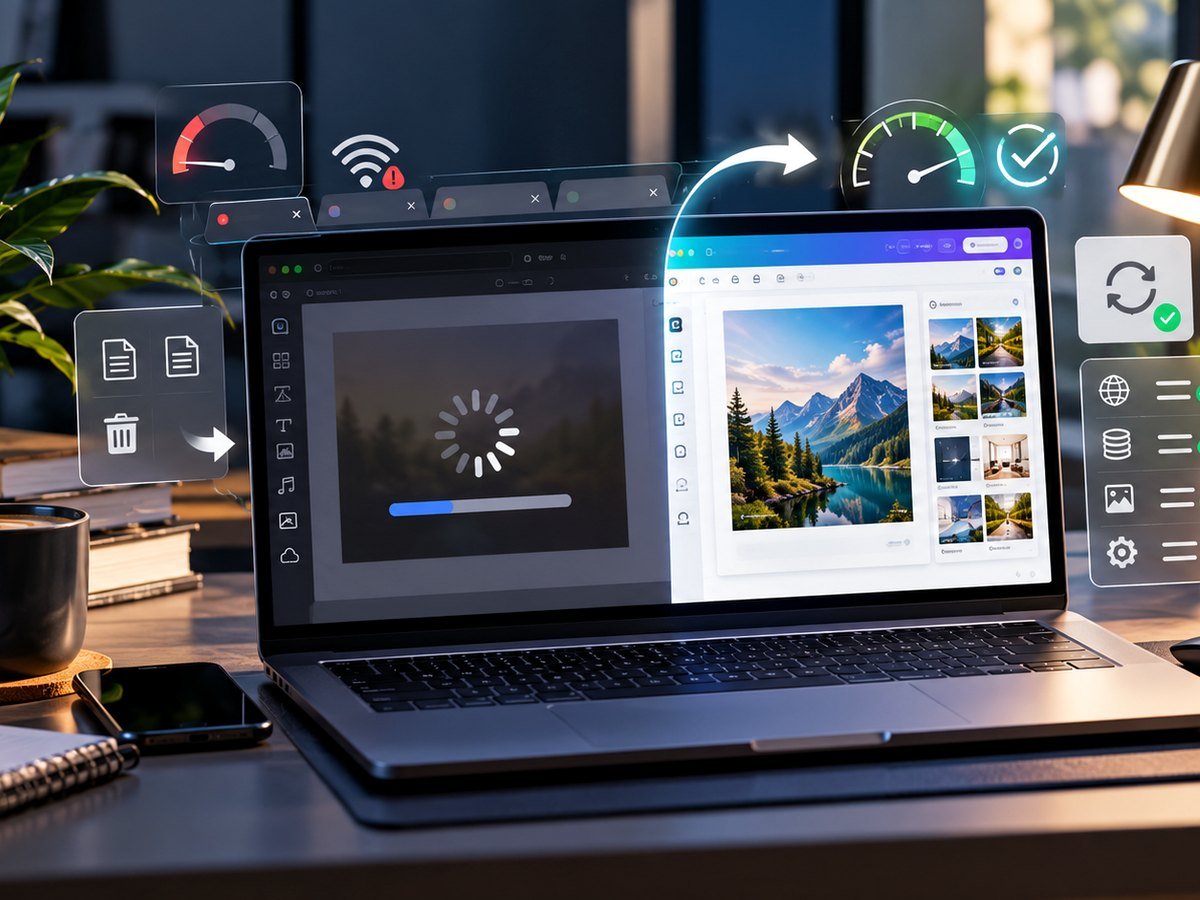
4. Test extensions, cache, and another browser
Open Canva in a private browser window. If it becomes much faster, an extension or stored browser data may be part of the problem. Disable extensions one at a time rather than removing everything at once.
If you clear browser data, first make sure your Canva work has saved. Then sign in again and test a simple design before you reopen the heavy file.
Use the Canva Social Media Size & Image Resizer
If Canva is slow only because you need to resize a social image, use this lightweight tool to resize and export the image without opening a large Canva project.
5. Keep a stable Canva workflow
Use original files, but do not upload huge media when a smaller web copy will do. Keep only the pages you need. Name final versions so you do not keep editing the wrong copy.
If lag causes save problems, read our Canva changes not saving guide. If uploads fail, use the Canva upload error guide. If you only need to prepare an image at the right size, the free resizer below can do that outside the Canva editor.
How to Fix Canva Slow Loading Issue
Video source: YouTube · Tutorials by Joe & Lisa
Frequently asked questions
Why is Canva so slow in my browser?
A weak connection, low device memory, many open tabs, browser extensions, a very large design, or temporary site issues can all slow the editor.
Will clearing browser cache delete my Canva designs?
Your cloud designs are tied to your Canva account, not only the local browser cache. Still, confirm important work is saved before clearing browser data.
Can a large Canva design cause lag?
Yes. Many pages, videos, animations, and large media files can use more browser and device resources.
Should I use the Canva app or browser?
Use the option that runs best on your device. If one is slow, test the other after confirming your work is saved.