
Canva Changes Not Saving or Disappeared? How to Recover Your Design Safely
Few Canva problems feel worse than making a full set of edits and then seeing an older version. In many cases, the work is not fully lost. The issue may be a save delay, the wrong copy, a team folder, or a version that can still be restored.
1. Confirm that Canva has saved the design
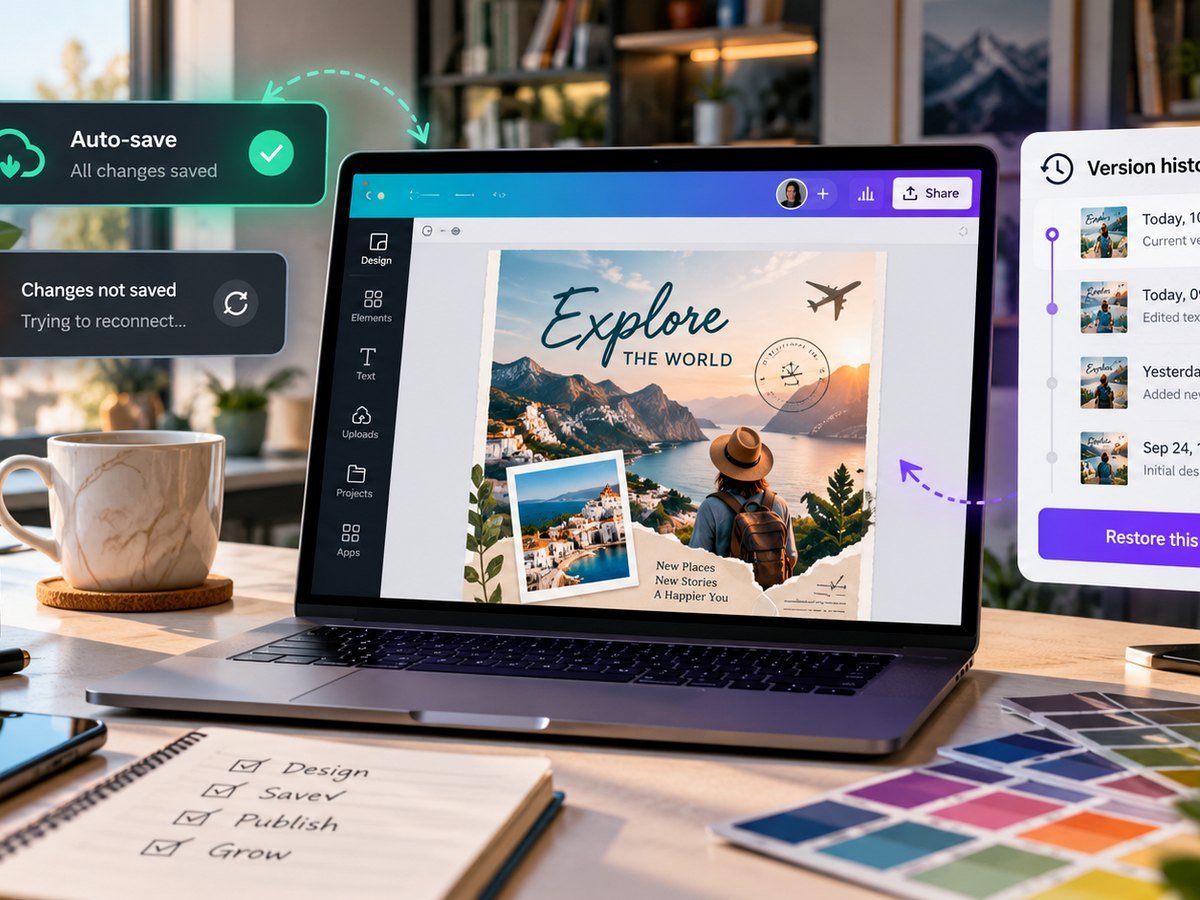
Before you close the tab, look at the save status. If Canva is still saving or reconnecting, keep the design open. A weak network can stop a cloud edit from reaching your account.
If you are unsure, use File → Save. Canva’s Help Center says designs are saved as you work, and manual save is also available when auto-save does not finish.
- Confirm your internet is stable.
- Wait for the saved status.
- Use File → Save.
- Open Projects and confirm the right file is there.
2. Make sure you are editing the right copy
A common problem is not lost work. It is duplicate work. A design may have been copied, moved into a team, or opened from an old browser tab. Check the file name and project folder before you edit more.
For client work, add a simple version name such as Menu v3 Approved. This is easier to track than several files called “Copy of Menu.” If you share files with a team, also check the Canva share link and permission guide.
3. Use Version History for a bigger rollback
If the design exists but the content changed, Version History can be useful. Open the design, choose File, then look for Version History. Access can depend on the plan you use.
Preview the old version before you restore it. If the old version is useful but you also want the new one, make a copy rather than replacing the current file. This gives you a safe branch to compare.
4. If the design looks gone, check Projects and Trash
Go to Projects and search the exact design name. Then check your team or folder. If the full design was deleted, check Trash. Canva says deleted items stay in Trash for a limited recovery period.
Do not create a new file too early. Find out whether the original still exists first. That avoids splitting your work across more copies.
5. Prevent the same problem next time
- Use clear file names.
- Wait for the saved status before closing.
- Make a copy before a major redesign.
- Keep one approved client version.
- Fix browser lag if saving is slow.
If saving takes a long time because the editor itself is slow, follow our Canva lag and loading fixes. If you cannot download the finished file, use the Canva download troubleshooting guide.
How to Restore Old Version of a Canva Design
Video source: YouTube · Max Dalton
Frequently asked questions
Does Canva save designs automatically?
Canva normally saves changes as you work. You can also use File and Save when you want to confirm a manual save.
Why did my recent Canva changes disappear?
A weak connection, a sync issue, or editing the wrong copy can cause confusion. Check save status, recent projects, and version history when available.
Can I restore an older Canva design version?
Version History can restore older versions on supported plans. Make a copy first if you want to keep both versions.
What should I do before closing Canva?
Wait until the save status confirms that changes are saved. For an important design, make a copy before a large edit.
One Response