Canva Share Link Not Working? Fix Access Denied, View, Comment, and Edit Permissions
A Canva share link can work for you and still fail for the person you send it to. The usual cause is not the link itself. It is the access level behind the link. A quick permission check can fix most “request access” and “cannot edit” problems.
1. Check the access level first
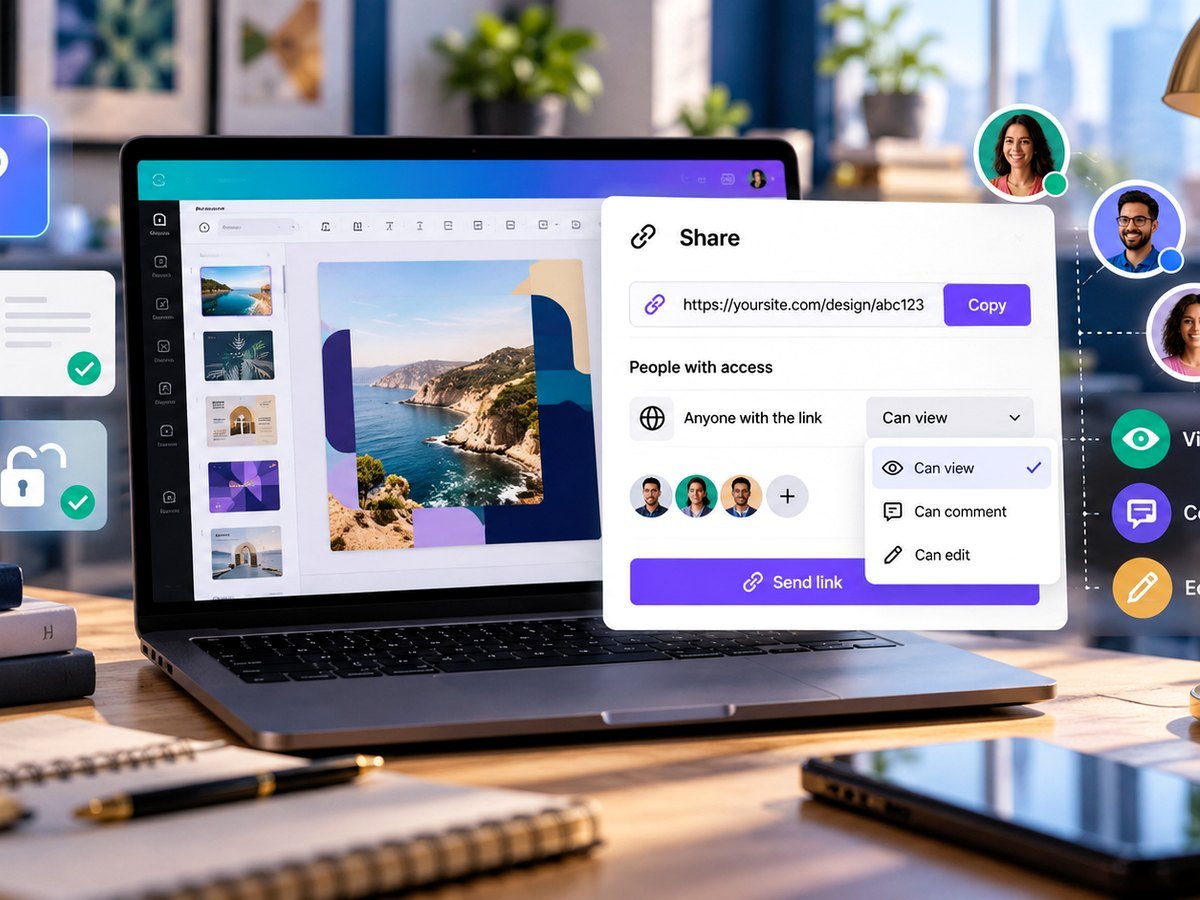
Open the design and choose Share. Canva designs are private by default in common workflows. If the other person sees an access request, check whether the design is set to “Only you,” a team-only setting, or a specific list of people.
If you want a public collaboration link, choose an “anyone with the link” option when it is available. Then choose the permission you really need.
2. Pick view, comment, or edit on purpose
| Permission | Best use | Main risk |
|---|---|---|
| Can view | Client preview or final review | They cannot fix text themselves. |
| Can comment | Feedback and approval | They may need to sign in for some actions. |
| Can edit | Team collaboration | People can change the design. |
For most client approvals, start with view or comment access. Edit access is useful when both people are building the same file.
3. Make sure you copied the right kind of link
A normal design link, a public view link, and a template link do different jobs. A template link is useful when you want another person to make their own copy without changing your master. Some public or template sharing options depend on your Canva plan.
Before you send a link, open it in a private browser window. This one test catches many permission errors before a client sees them.
4. Check hidden content before public sharing
Canva warns that publicly shared designs can expose more than the visible page in some cases. Review hidden pages, notes, cropped content, and old material before you publish a public link.
For sensitive client work, make a clean copy that contains only the pages you want to share. Then create the link from that copy.
5. Use a simple client sharing workflow
- Make a clean review copy.
- Choose view or comment access.
- Copy the link.
- Test it in a private browser window.
- Send the link with a clear request, such as “Please review pages 1–4.”
If you are sharing a PDF instead, read the Canva clickable PDF link guide. If you are creating client social graphics, browse the Canva template library for a faster starting point.
Canva’s official sharing guide has the latest access options.
How to Share Canva Design Links so Everyone Can See Them
Video source: YouTube · Budi Tutorials
Frequently asked questions
Why does my Canva link ask people to request access?
The design may still be set to private or limited to specific people or a team. Open Share and review the access level and permission.
What is the difference between view, comment, and edit access?
View lets people see the design, comment lets permitted users discuss it, and edit gives permission to change the design.
Should I use an edit link for a client?
Only when the client needs to change the original. For review, view or comment access is usually safer.
Can anyone with a link edit my design?
Only if you choose a link setting that allows editing. Review the permission before sending the link.