Canva QR Code Guide: Add QR Codes That People Can Scan Reliably
A QR code can connect a printed or visual design to a web page, menu, booking form, product, or guide. The code itself is simple. Most scan problems come from weak contrast, tiny size, crowded placement, or an incorrect destination.
Build the QR code near the end of the design process. First decide where it should lead. Then create it, place it, and test the final exported file on more than one device.
- Choose the final destination first.
- Create the code.
- Protect the quiet zone.
- Place it at a useful size.
- Test the exported file.
1. Decide the Destination Before You Design the Code
Use one clear, working page. Avoid temporary links if the printed design will stay in use for months. Open the page on a phone first and make sure it is useful on a small screen.
If you use the site’s QR code generator, paste the final destination and save the code as a clean image before you place it into Canva.
Good QR destinations
- A menu or price page.
- A booking or contact page.
- A product or offer page.
- A portfolio or guide.
- A simple download page.
2. Use Strong Dark-on-Light Contrast
Black on white is the safest starting point. Dark blue on white can also work when the contrast is strong. Avoid low-contrast color pairs, busy photo backgrounds, and transparent effects behind the code.
If you change the colors, use the Color Contrast Checker as a simple warning step, then scan the final result with a real phone.
3. Protect the Quiet Zone
Leave empty space around the code. Do not place text, borders, icons, or photos directly against the outer squares. That clear area helps the scanner separate the code from the rest of the design.
A white card behind the code is often useful when the design has a photo or colored background. Keep the card simple and give it enough padding.
| Problem | Safer fix |
|---|---|
| Busy photo behind code | Add a solid light card |
| Code is very small | Increase size and test |
| Logo covers modules | Remove or reduce the logo |
| Text touches code | Add more clear padding |
4. Give the Code Enough Physical Size
A code that looks large on a monitor can become tiny after printing. Think about the real viewing distance. A menu on a table needs a different size from a poster on a wall.
Export one test, view it at its final size, and scan it before you order a large print run.
5. Test the Export, Not Only the Canva Canvas
Scan the downloaded PNG, JPG, or PDF. Compression, scaling, or print settings can change edge detail. Test on at least two phones when the design is important.
If the code is part of a web graphic, use the Canva export guide and keep the file clear enough without creating an oversized download.
How to Create QR Codes and Use Them for Business
Video source: YouTube
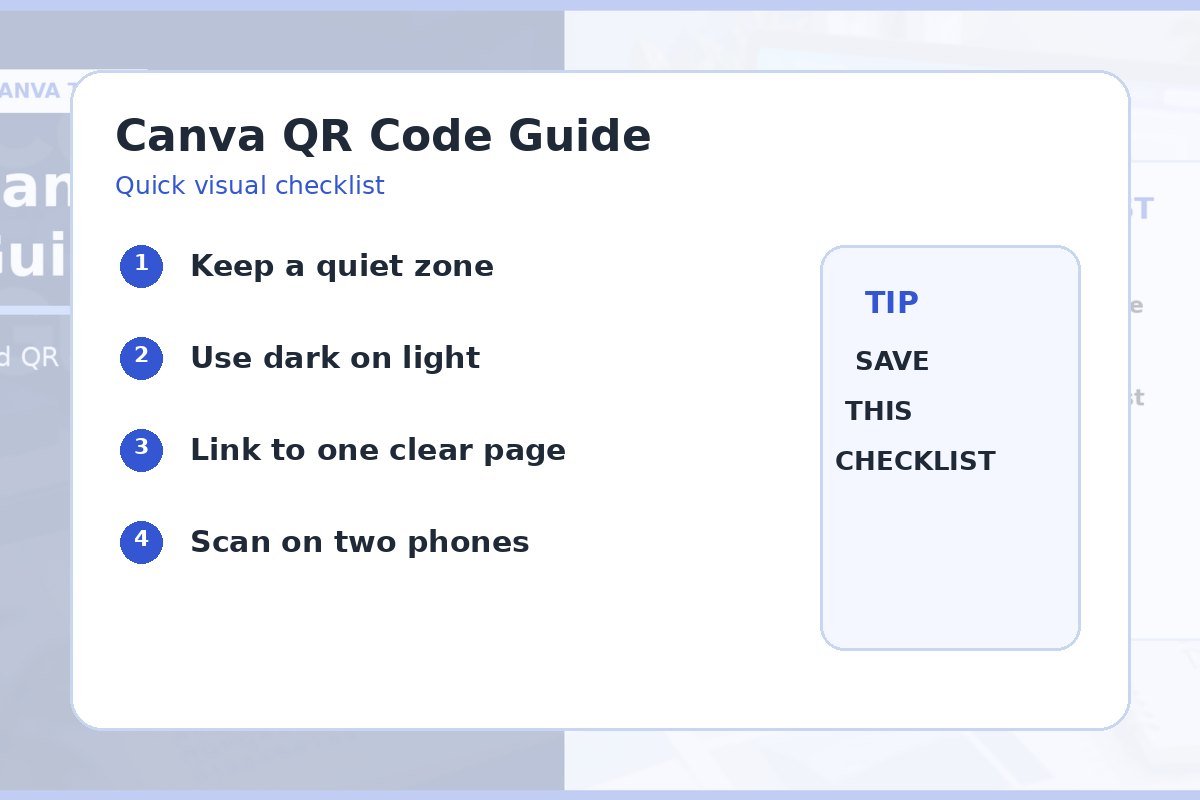
Quick checklist
- Final URL confirmed.
- Strong dark-on-light contrast.
- Clear quiet zone.
- Useful physical size.
- Export scanned successfully.
- Destination works on mobile.
Frequently asked questions
Can I place a QR code over a photo?
It is safer to place the code on a solid light card with clear padding. Busy backgrounds can make scanning harder.
Should I test a QR code before printing?
Yes. Test the exported file and a physical proof when possible. A code that scans on the editor preview may fail after scaling or printing.
Can a QR code be blue?
A dark color can work on a light background, but test it. Strong contrast matters more than decorative color.